
Tutorials
3 min read
June 17, 2026

Here's how to build a simple Google Workspace Studio automation that turns every form submission into a personalised email draft in your inbox.
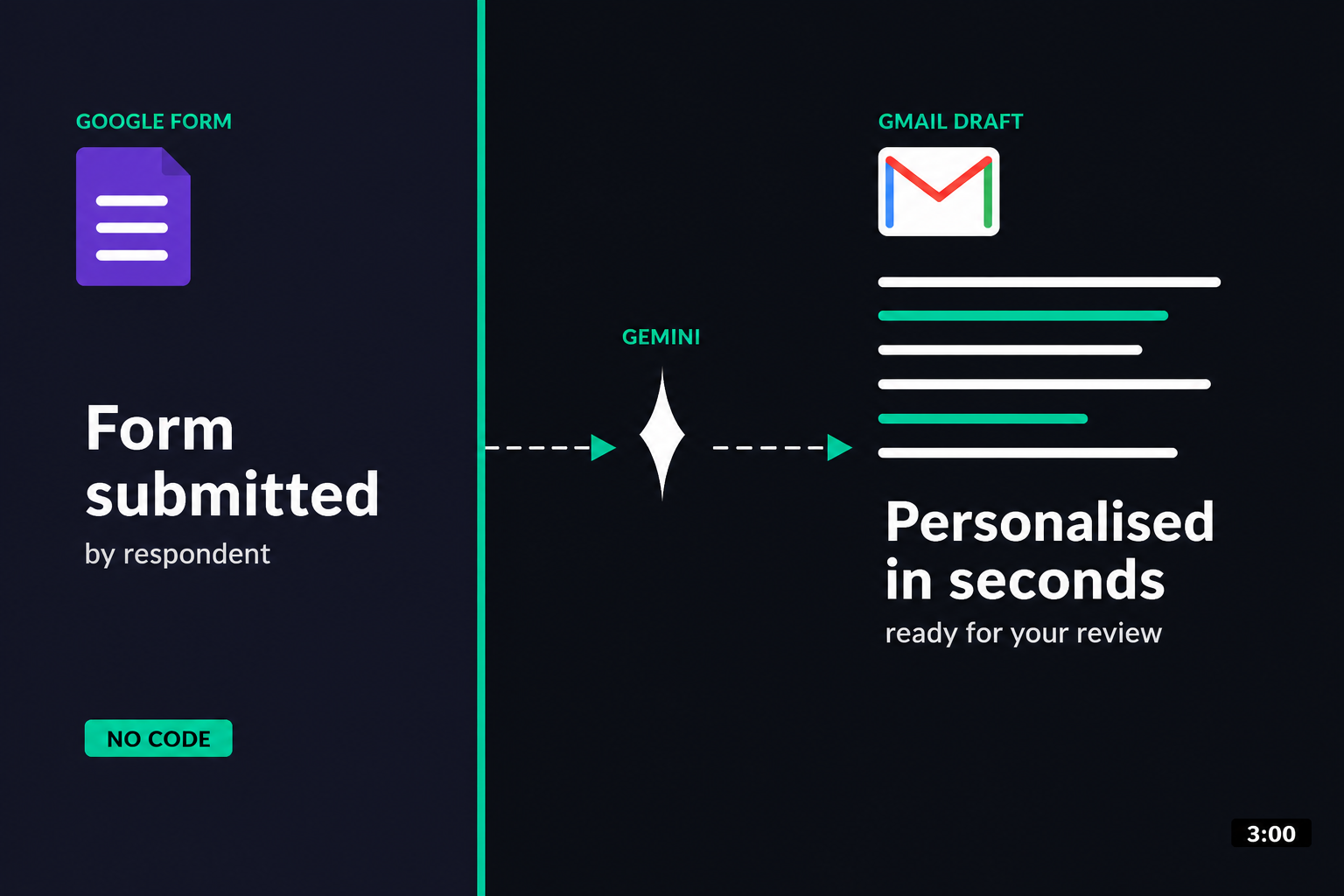
Follow the instructions in the video below, you can connect a Google Form directly to Gemini using Google Workspace Studio. Every time someone submits the form, Gemini reads their response and drafts a personalised email reply, ready for a final human review in your Gmail drafts folder.
The setup takes about five minutes, requires no code, and works for onboarding, lead nurturing, event signups and any other workflow where you're expecting inbound form responses.
• Trigger = a Google Form submission. Action = Gemini drafts a personalised email reply in your Gmail drafts.
• The model reads the form response, picks up on tone and tailors the draft accordingly. For example, a supportive draft if the respondent is stressed, or an enthusiastic draft if they’re excited.
• Drafts go to your inbox and not directly to the respondent. A human then reviews and sends.
• Useful immediately for onboarding, lead replies, event follow-ups.
• No technical background required. It’s a five minute job once you know where the buttons are!
After that you should be ready to implement the automation. But if you’re looking for some extra context, you can read on for a background on the tools, technical breakdown of the automation and some support on prompting.
Google Workspace Studio is Google’s automation builder for Workspace. It thinks in two simple building blocks:
• Trigger: something that kicks off the workflow (a form submission, a new email, a calendar event)
• Action: what happens next (Gemini drafts a reply, a row gets added to a sheet, a doc gets created)
You connect them with a short instruction in plain English. No need for code or technical language of any kind here.
Three components:
• Trigger: a new submission to a Google Form
• Instruction to Gemini: read the form response and draft a personalised reply that acknowledges the specific answers and sets a clear next step
• Action: the draft lands in your Gmail drafts folder for human review
What makes this different from a templated reply is that Gemini reads the contents of the response. If a respondent mentions they’re stressed about a deadline, the draft is more supportive. If they’re excited about a launch, the draft will give reference to the launch. The model will include the context of each individual respondent and keep your communications personal.
This is the prompt we use as a starting point:
“You are a professional communications assistant. I’m going to give you a form response from [client / staff member / event attendee]. Draft a warm, personalised email reply that acknowledges their specific answers and sets a clear next step. Avoid generic openers. Tone: [friendly / professional / supportive]. Form response: [paste here].”
This will do a lot of the heavy lifting, but there are a few tweaks worth making:
• Specify the tone explicitly. Gemini defaults to a generic professional voice if you don’t ask for something else.
• Paste in two or three of your best past replies as examples. The model picks up on house style faster from a good example than from any amount of description.
• Tell it what not to do… “Don’t promise anything specific, don’t suggest a meeting time, don’t sign off as anyone but yourself”.
Here are two places you can start using this form from tomorrow.
Lead nurturing. Inbound inquiry forms can be turned into warm, summarised drafts that address specific pain points and propose a clear call to action. It could also be implemented as a simple scheduling assistant, asking for availabilities and setting up a longer discussion.
Event management. Past a basic “thanks for signing up,” the same flow can produce
personalised recommendations for sessions or activities based on what an attendee told you they are interested in. This is very useful for any conference, workshop or industry events with parallel tracks.
These are just two quick examples, but you can apply this automation to any workflow that involves an inbound form.
A few things we’ve learned from running this across real workflows:
• Keep humans in the loop. Drafts go to your inbox first and should never be sent straight to the recipient. No matter how good the model is, you should keep a keen eye on anything being communicated in the name of you or your team.
• Be specific about tone. Generic professional voice is the default, so if you want something else you’ll have to ask for it.
• Show good examples. Paste in past replies that work well and style new responses according to these examples.
• Test the edge cases. Empty fields, weird answers, people writing essays in a one-line text box. Run a few oddball test submissions through before you trust it on the real responses.
• Don’t let it promise things. Tell the AI explicitly not to commit to specific dates, prices, or outcomes. Even with a manual check to come before it’s sent out, the last thing anyone needs is random dates and pricing quotes in their drafts.
Most of the AI work that actually changes how a team operates isn’t the big fancy builds. It’s the simple automations that reclaim two hours a week, every week, forever. If you’ve got Google Workspace, you’ve already got everything you need to build this.
Don’t stop there. If you’ve enjoyed giving this simple automation a try and you’re on the hunt for other automations hiding in your workflows, the AITC can help. Get in touch!